
(All IPNut proxy services require an overseas network environment. This tutorial assumes operation under such conditions.)
To use IPNut’s IP services, users must first purchase proxy ports.
Payment Methods: Alipay, WeChat Pay, Credit Card (contact staff for alternative payment options)
Account Top-up: Required if balance is insufficient (via Alipay/WeChat/Credit Card)
WeChat Customer Service:

Official Support Channels:
- Telegram: @Jennyipnut
- Contact details are available on our website – reach out for any assistance.
Step 1: Proxy Purchase Process #
Account Setup & Proxy Purchase
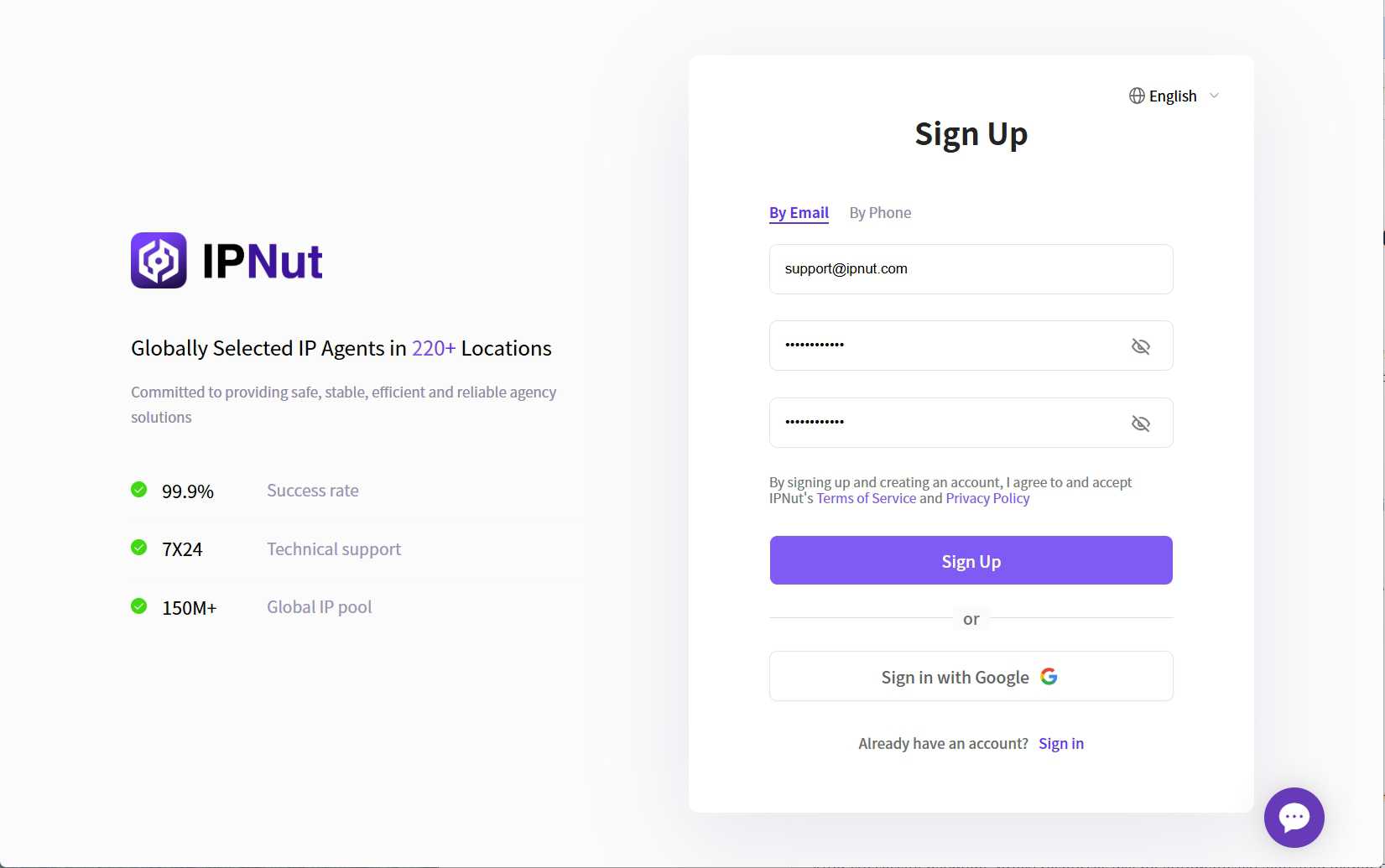
1. Register Account
Create your IPNut account via email, phone, or Google account.
2. Platform Login
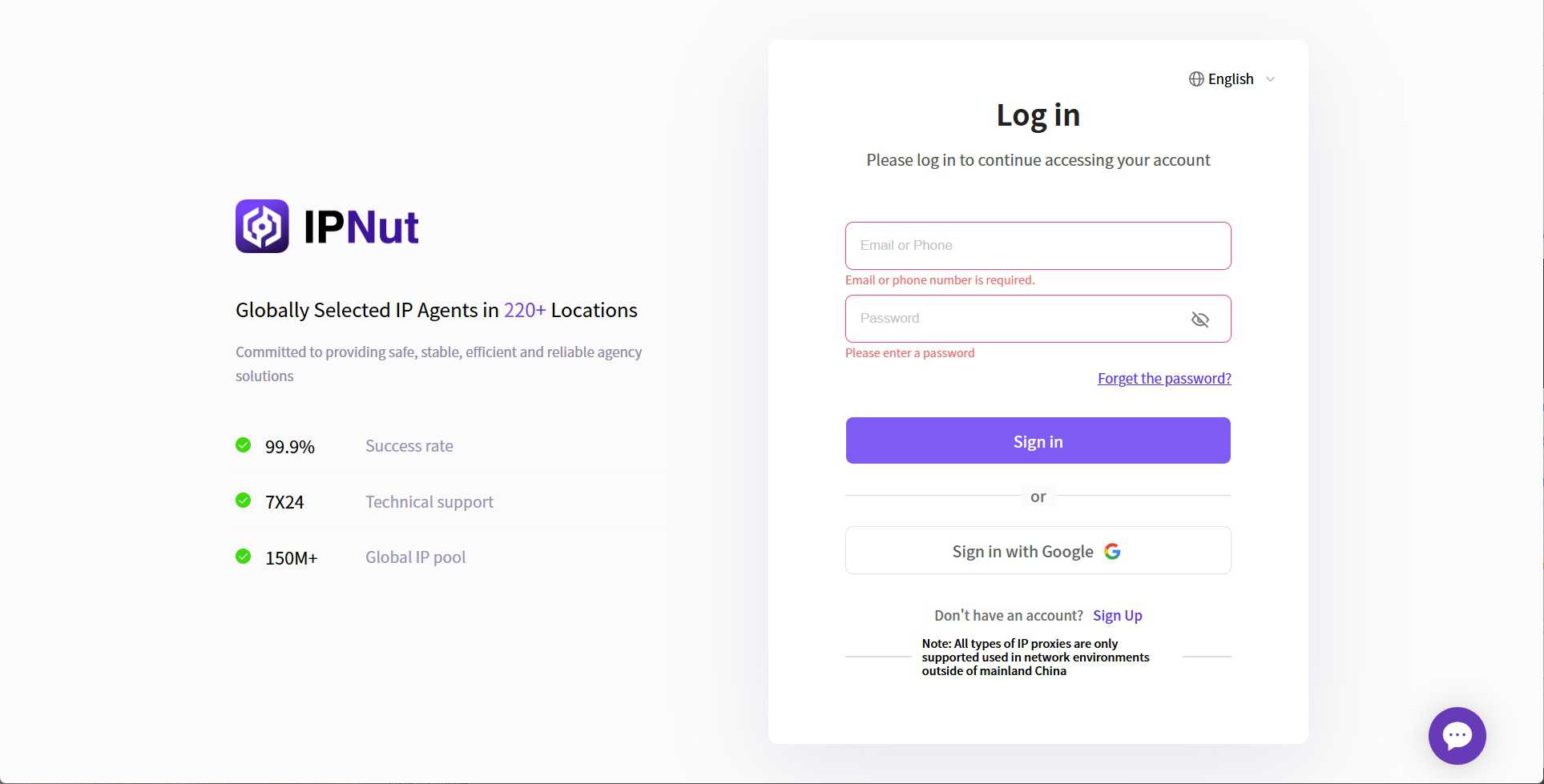
Visit ipnut.com and log in using email, phone, Google.
3. Access Control Panel
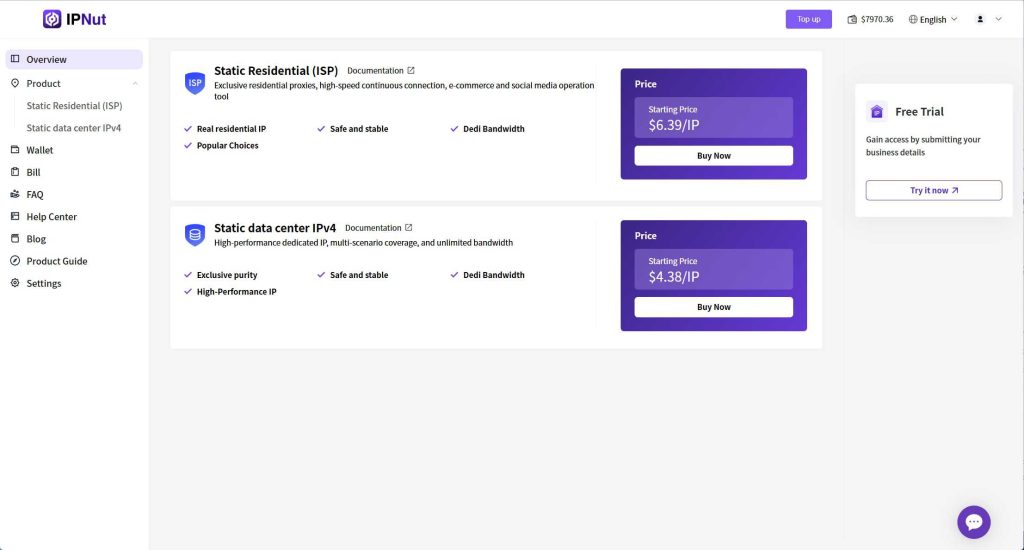
New users can request free trials by contacting customer service.
4. Purchase Proxy Ports
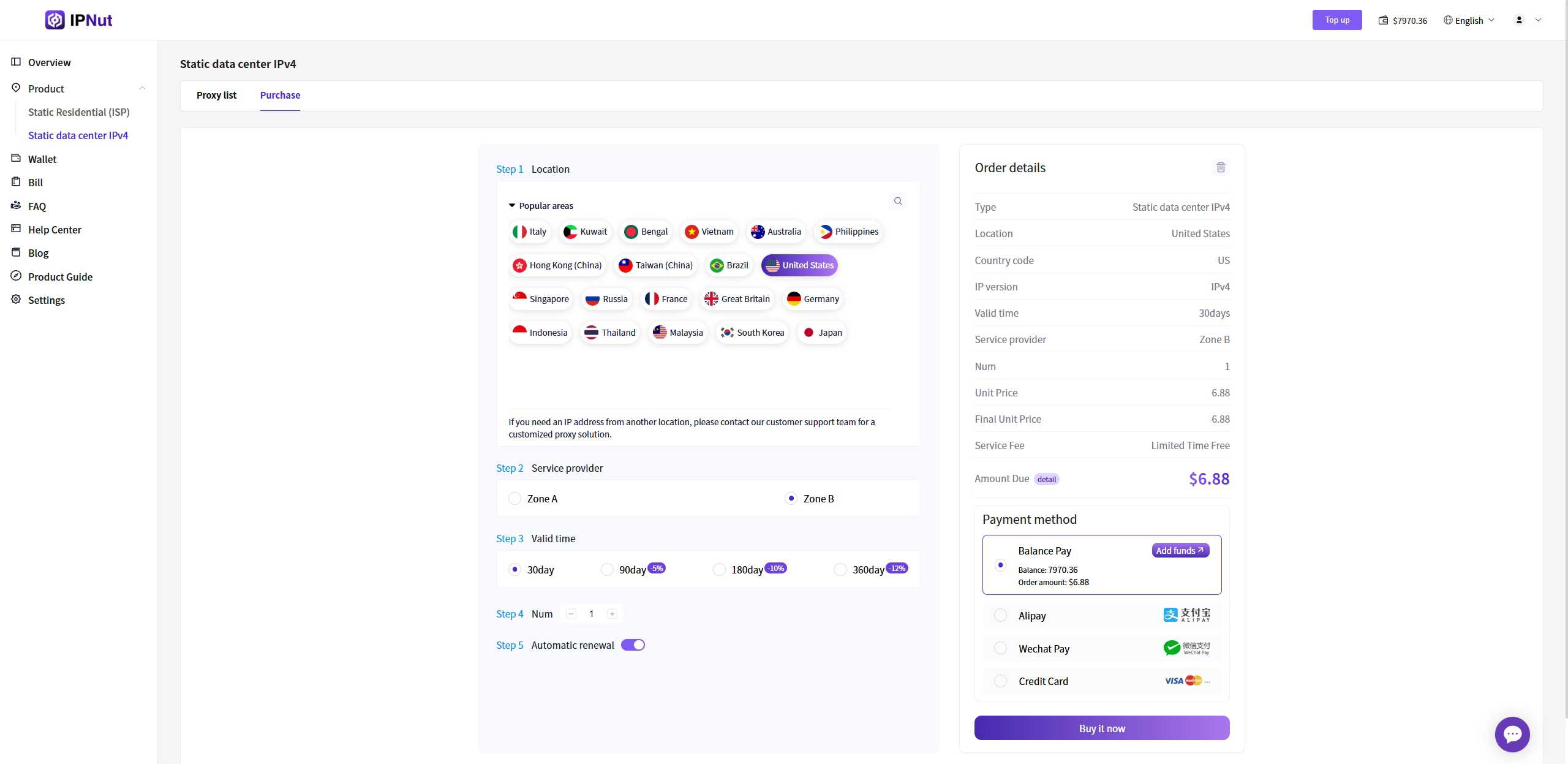
Select proxy parameters according to your needs:
5. Order Confirmation
Review order details in the right panel and click “Buy Now”
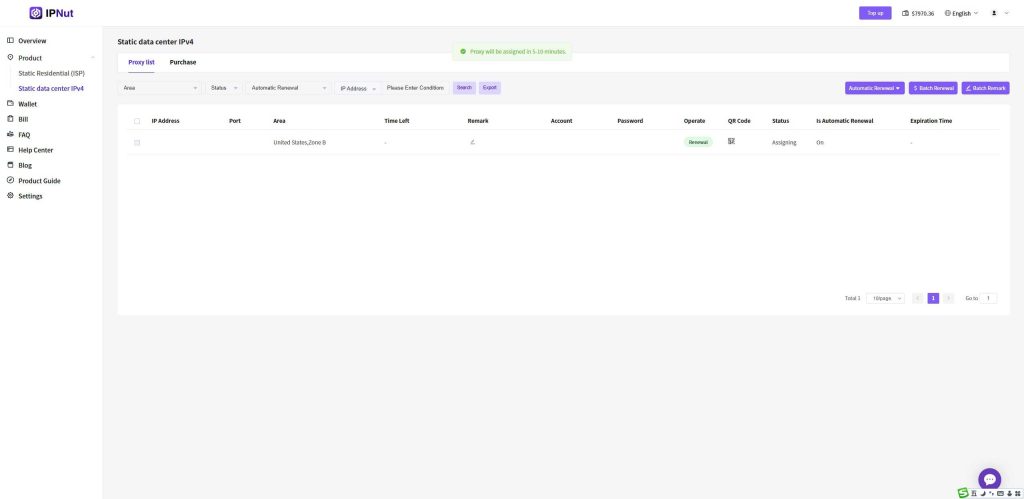
6. Order Processing
After successful payment:
- Order status: Processing (5-10 minute typical processing time)
- Orders appear in your proxy order list
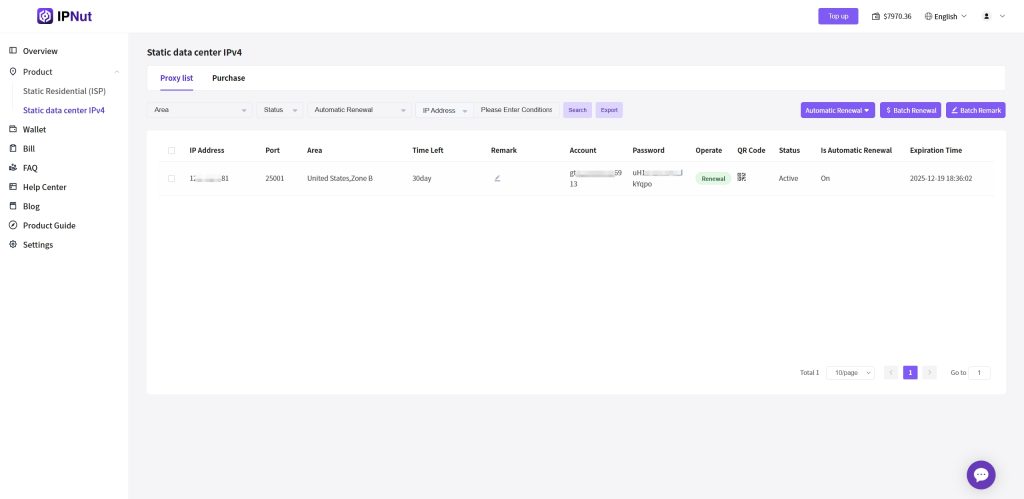
7. Access Proxy Details
Proxy Address Format
Structure: Protocol + Username + Password + IP + Port + Region remark
Examples:
socks5://account:password@127.0.0.1:12001#kr-seoulhttp://account:password@127.0.0.1:13001#kr-seoul
Usage: Extract protocol, IP, and port components as required by your proxy software.
This completes the IPNut proxy purchase process.
Step 2: DuoPlus Cloud Phone Configuration Tutorial #
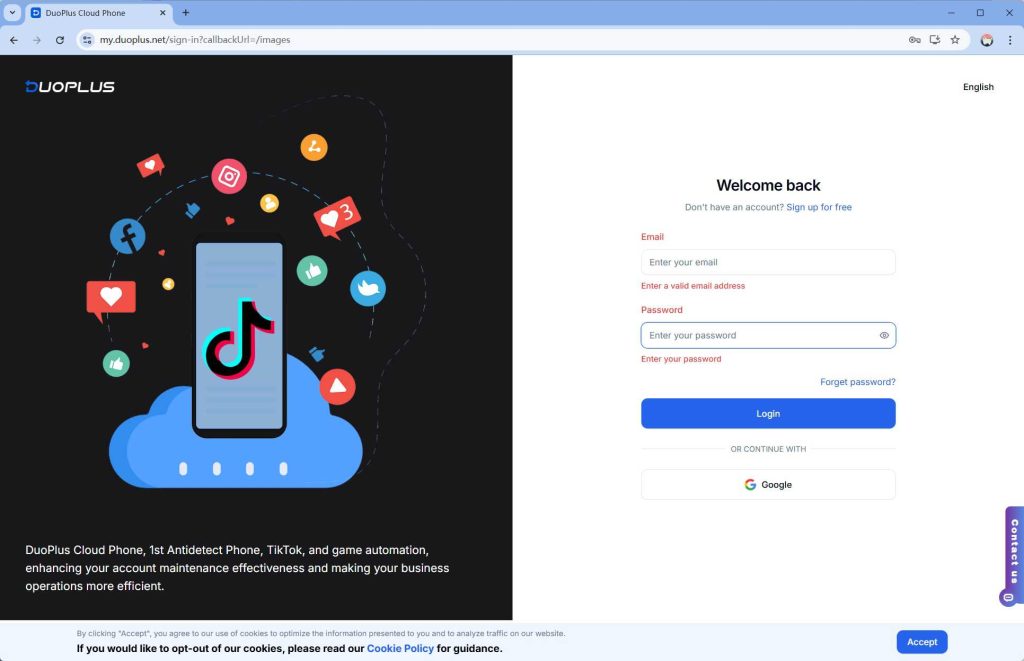
1. DuoPlus Registration and Login #
- Visit DuoPlus official website: https://www.duoplus.cn
- Complete registration and log in to access the operation page
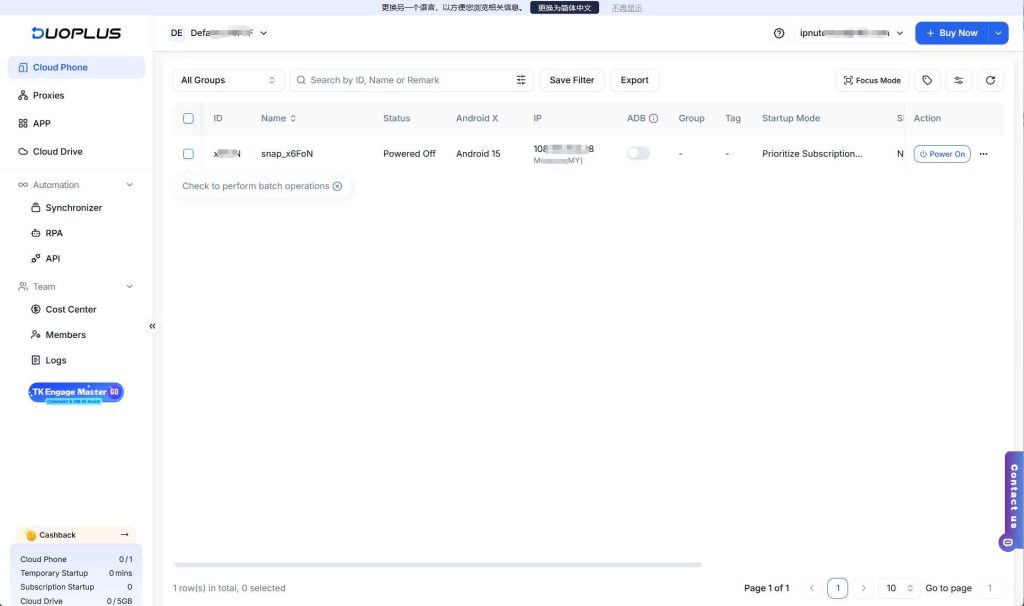
- Click 【Cloud Phone】 → 【Experience Now】
*Note: DuoPlus cloud phones currently only support SOCKS5 proxy configuration, with coverage across 50+ countries and regions worldwide*
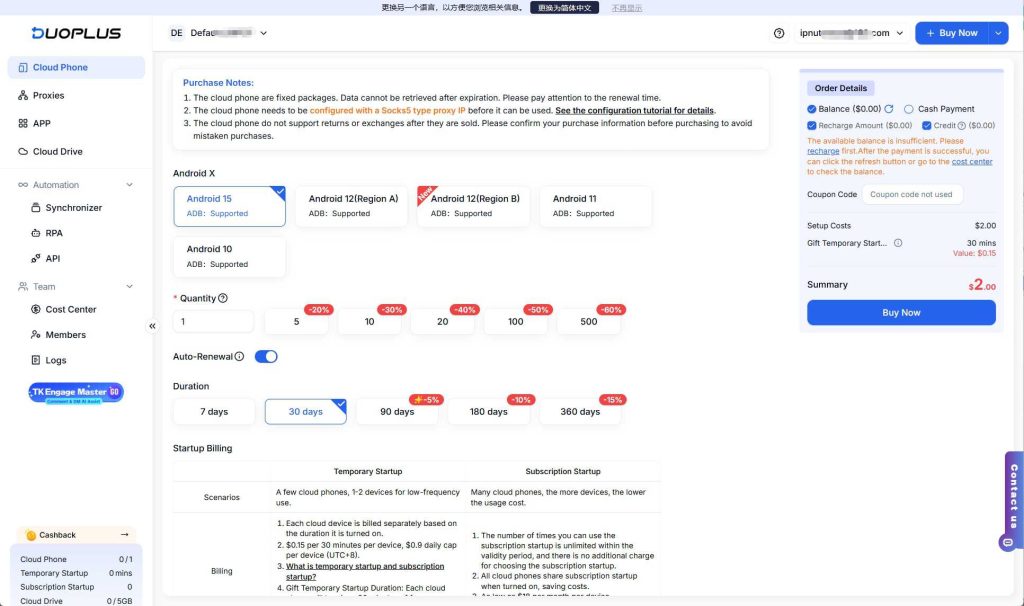
2. Select and Purchase Configuration #
- Select 【Android Version】
- Choose 【Purchase Quantity】
- Set 【Purchase Duration】
- Select 【Payment Method】
- Click 【Buy Now】
On the purchase interface, select the desired quantity and duration of cloud phones according to your requirements.
(Important: DuoPlus cloud phones require SOCKS5 proxy IP configuration for proper functionality)
3. IPNut Proxy IP Configuration #
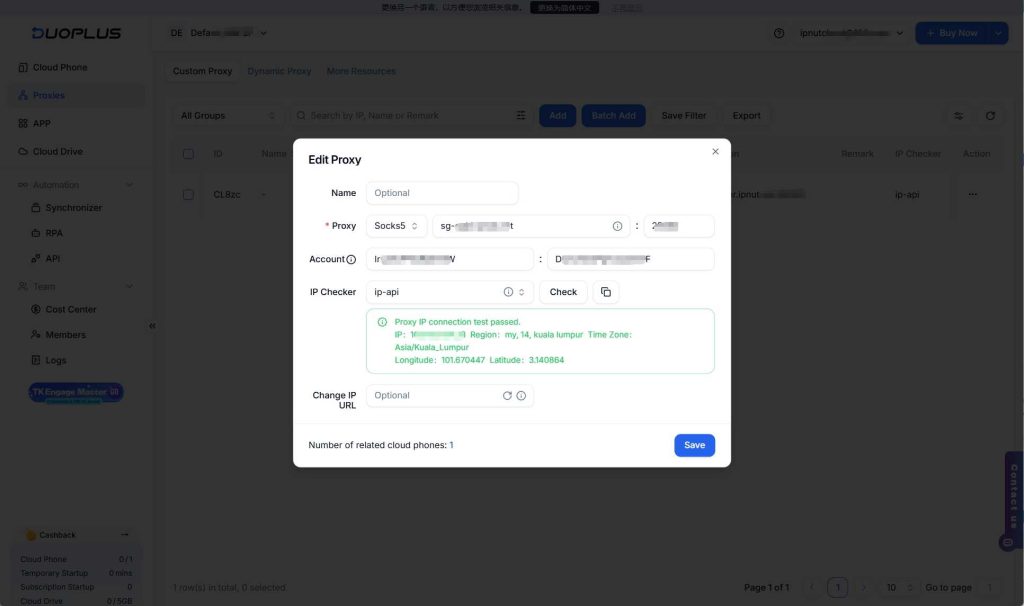
After purchase completion, the system automatically redirects to 【Cloud Phone Configuration】
Proxy Configuration Steps:
- Navigate to the 【Network】 section in the configuration panel
- Input your IPNut proxy information
- Click 【Check Proxy】 to verify connectivity
Status Indicators:
- ✅ “Proxy check passed” indicates successful configuration – cloud phone is ready for use
- ❌ If check fails, contact customer support for troubleshooting assistance
4. Complete Configuration and Startup #
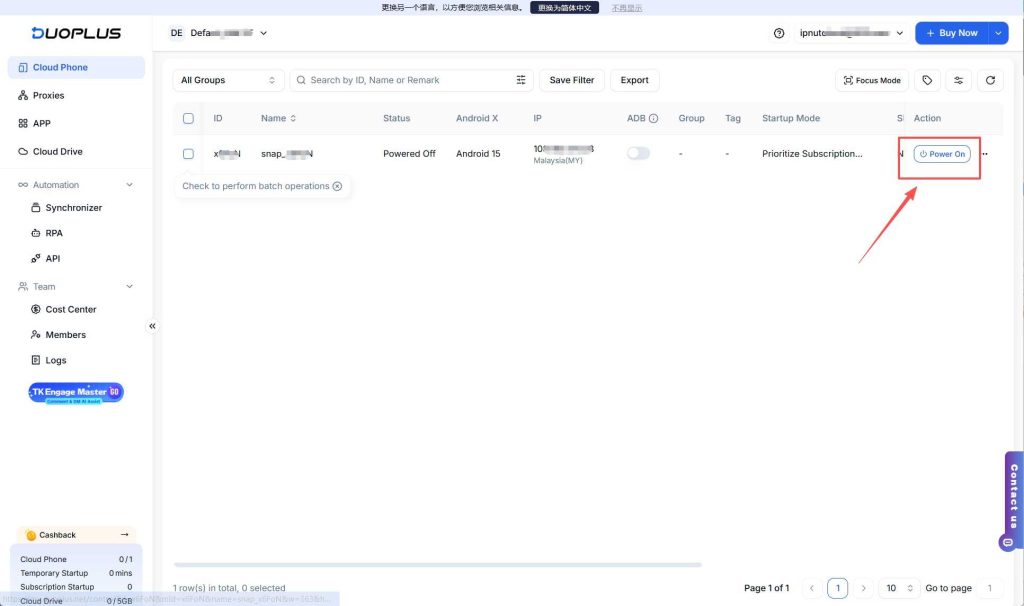
- Configuration is now complete
- In the cloud phone management list, select the newly created cloud phone
- Click 【Power On】 to initialize the device
5. System Operation #
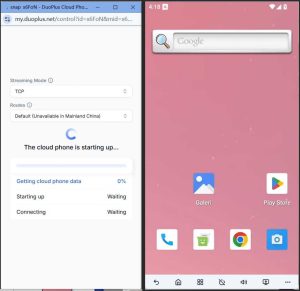
Once the cloud phone is created and configured, click 【Connect】 to begin using the device
Wait for system configuration to complete
The cloud phone interface will become accessible for operation
Configuration Complete!
Your DuoPlus cloud phone is now successfully configured with IPNut’s SOCKS5 proxy and ready for secure operation.
Technical Support
For configuration assistance or troubleshooting:
- Email: jenny@ipnut.com
- Live Chat: 24/7 support via official website
Note: Ensure all IPNut proxy services are used within appropriate network environments as per terms of service.


