
(All IPNut proxy services require an overseas network environment. This tutorial assumes operation under such conditions.)
To use IPNut’s IP services, users must first purchase proxy ports.
Payment Methods: Alipay, WeChat Pay, Credit Card (contact staff for alternative payment options)
Account Top-up: Required if balance is insufficient (via Alipay/WeChat/Credit Card)
WeChat Customer Service:

Official Support Channels:
- Telegram: @Jennyipnut
- Contact details are available on our website – reach out for any assistance.
Step 1: Proxy Purchase Process #
Account Setup & Proxy Purchase
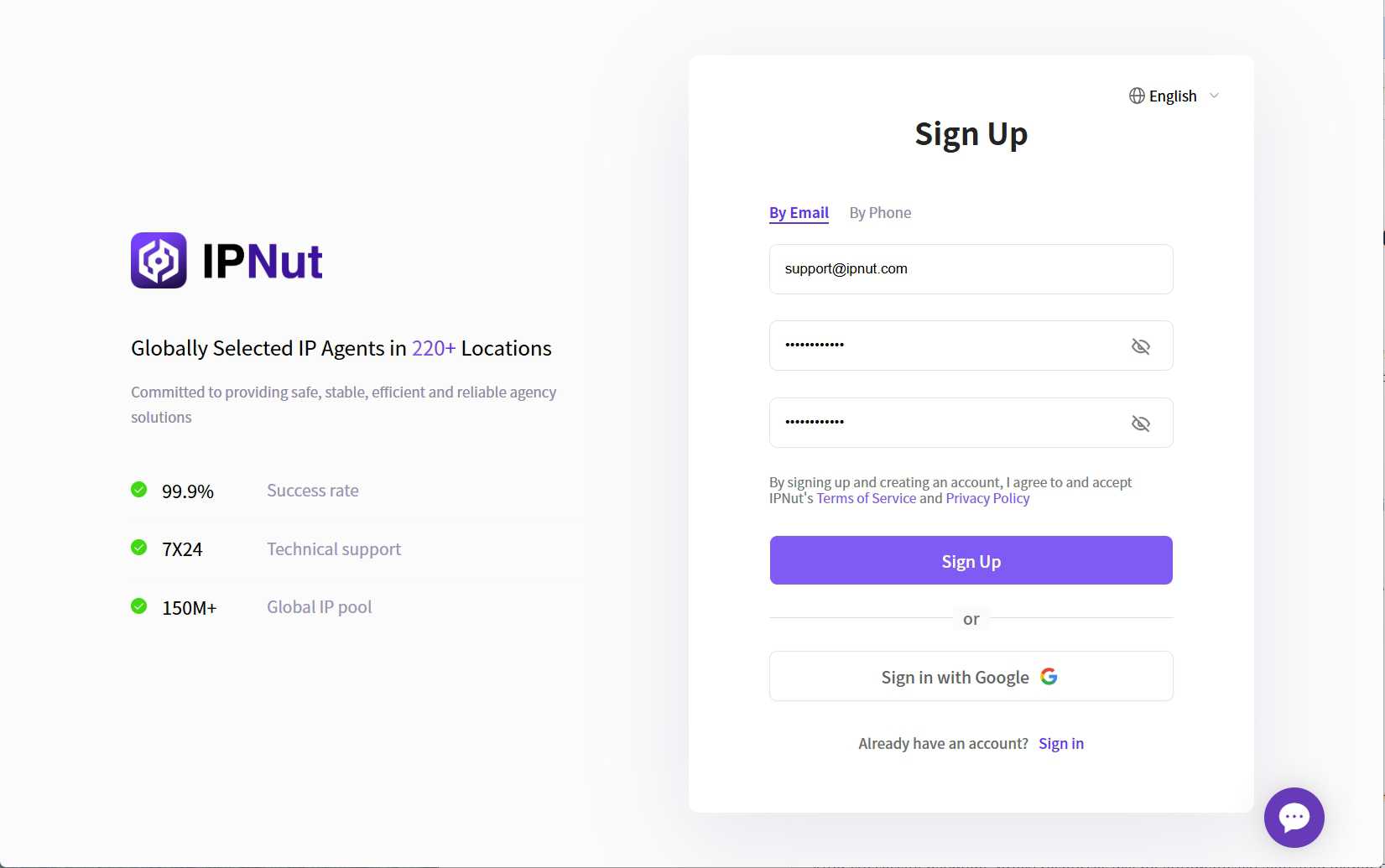
1. Register Account
Create your IPNut account via email, phone, or Google account.
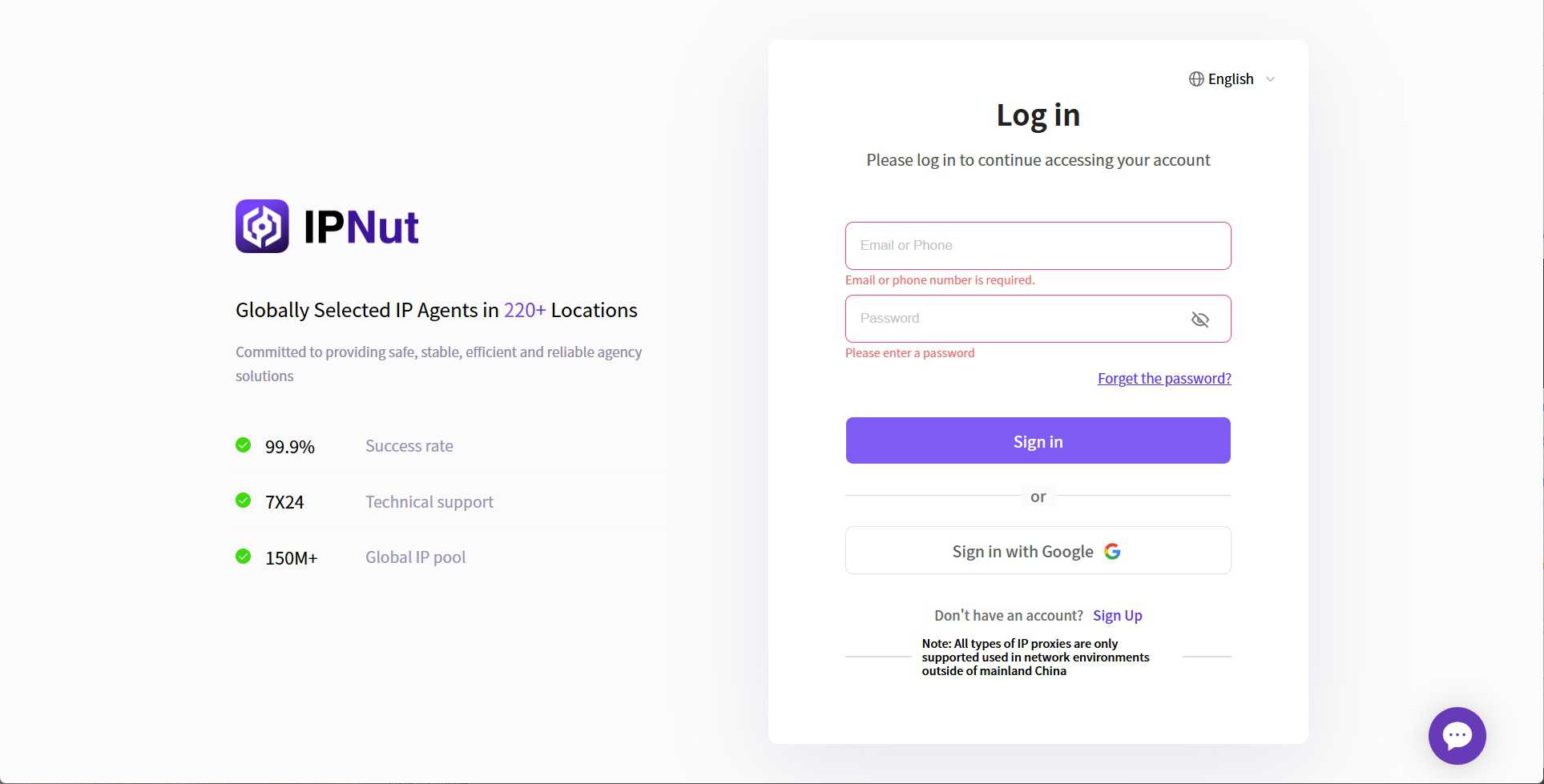
2. Platform Login
Visit ipnut.com and log in using email, phone, Google.
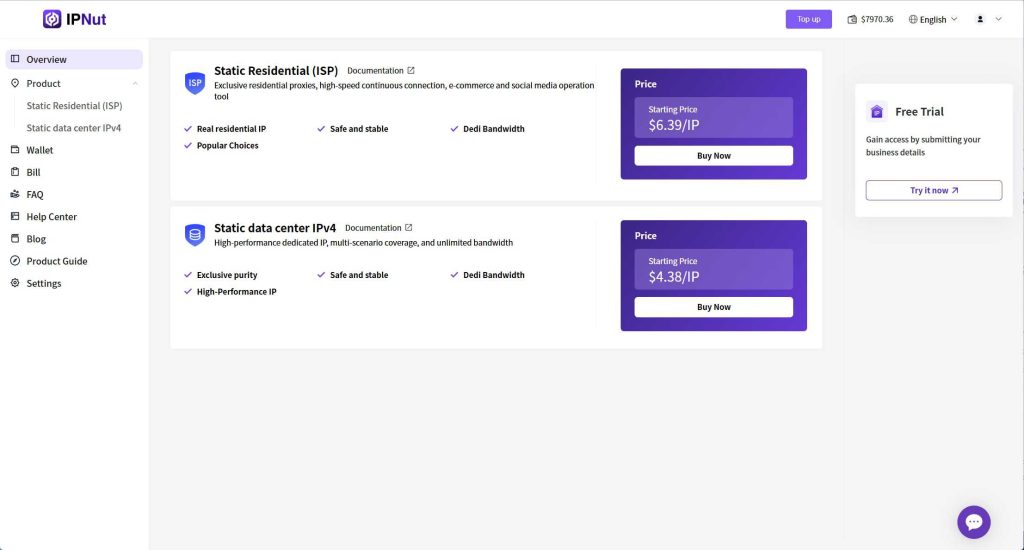
3. Access Control Panel
New users can request free trials by contacting customer service.
4. Purchase Proxy Ports
Select proxy parameters according to your needs:
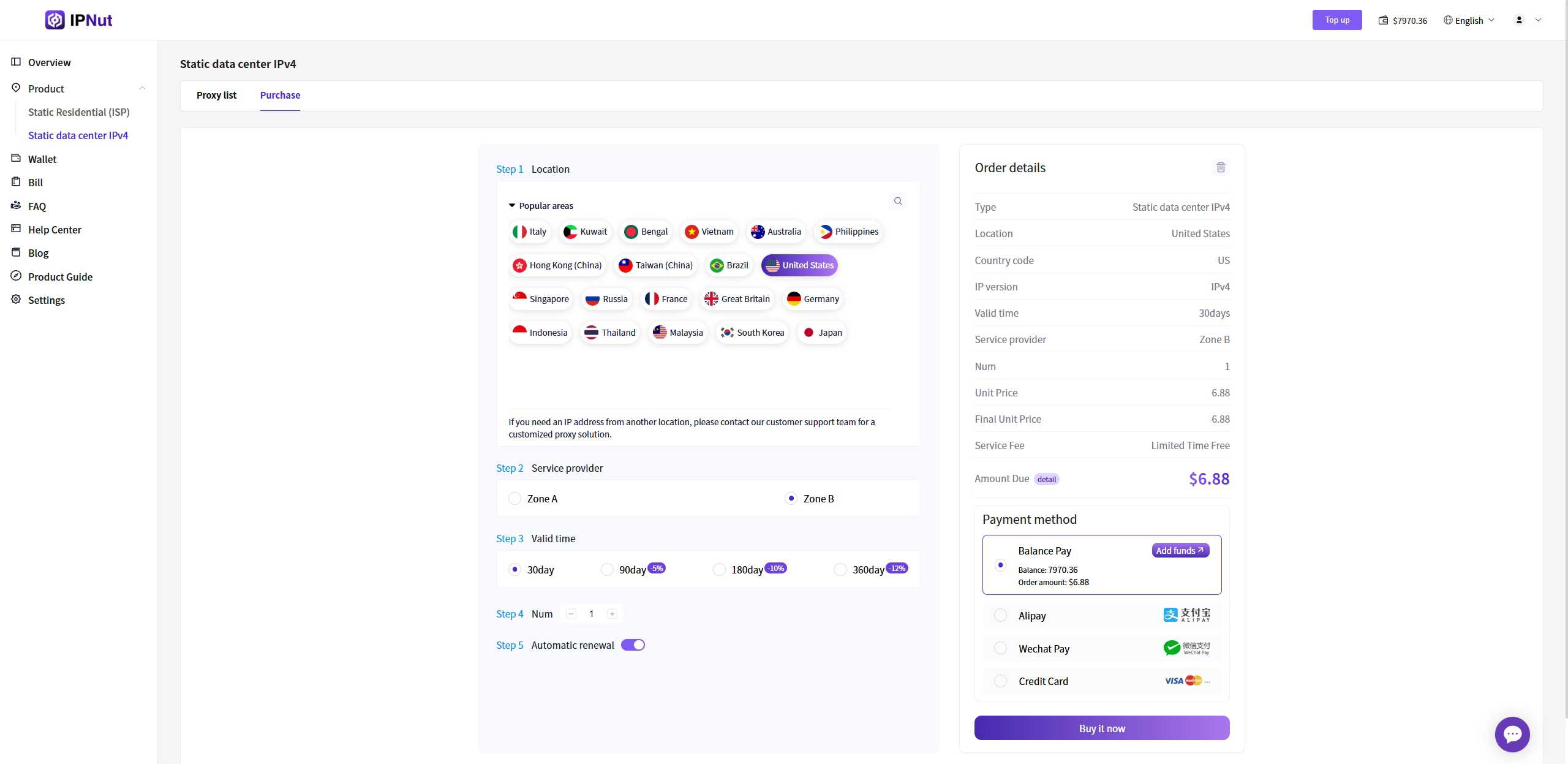
5. Order Confirmation
Review order details in the right panel and click “Buy Now”
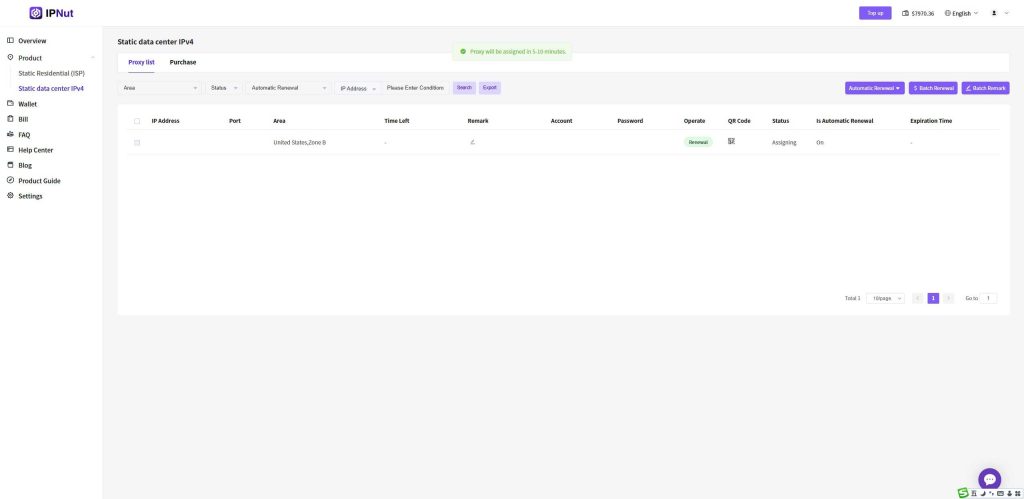
6. Order Processing
After successful payment:
- Order status: Processing (5-10 minute typical processing time)
- Orders appear in your proxy order list
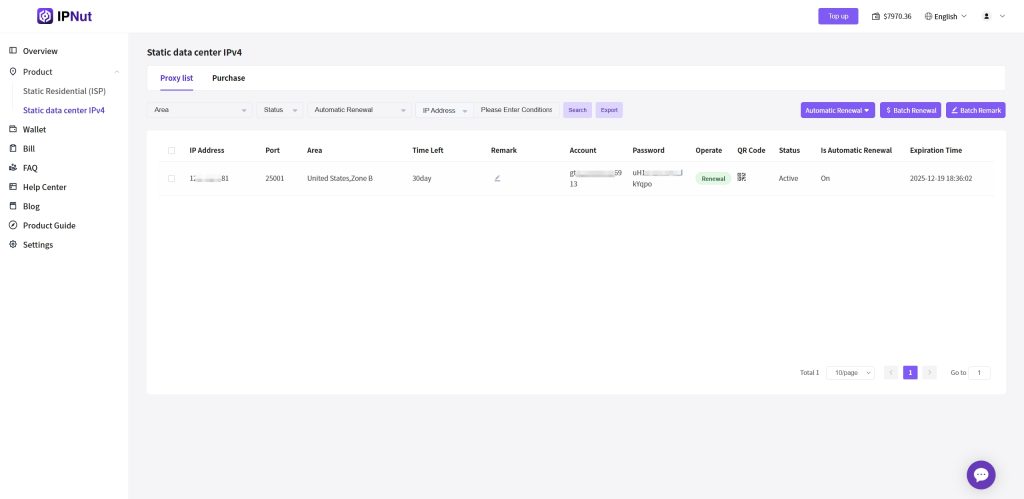
7. Access Proxy Details
Proxy Address Format
Structure: Protocol + Username + Password + IP + Port + Region remark
Examples:
socks5://account:password@127.0.0.1:12001#kr-seoulhttp://account:password@127.0.0.1:13001#kr-seoul
Usage: Extract protocol, IP, and port components as required by your proxy software.
This completes the IPNut proxy purchase process.
Step 2: Zinia Browser Proxy Configuration Tutorial #
Configure IPNut proxy IPs in Zinia Browser using the following step-by-step process:
1. Launch Zinia Browser #
- Open your installed Zinia Browser application

2. Create New Device Profile #
- Navigate to menu 【Devices】 → 【Add Single Custom Device】
- Fill in the required device information according to your needs

3. Configure Proxy Support #
- Enable proxy support in the configuration
- Protocol Selection Note: IPNut proxies support both HTTP and SOCKS5 protocols
- Recommended: Select SOCKS5 (assuming you purchased dual-protocol proxy IPs from IPNut)

4. Retrieve Proxy Credentials from IPNut #
- Access: IPNut Platform → Static Residential ISP Proxies → Proxy List
- Copy the following information:
- Server address (IP)
- Port number
- Authentication username
- Password
Alternative method: Scan the QR code to obtain dual-protocol proxy information
Example proxy format: socks5h://account:password@127.0.0.1:15002

5. Input Proxy Details in Zinia Browser #
Enter the copied information into the corresponding Zinia Browser fields:
- Proxy Type: SOCKS5
- Server/Host: IP address
- Port: Port number
- Username: Proxy account
- Password: Proxy password

6. Test Proxy Connection #
- After completing the information, click the 【Test】 button in the bottom-left corner to perform IP detection

7. Save Configuration #
- After successful testing, click 【Confirm Add】 to save the configuration

8. Verify Configuration #
- The system returns to the device list showing the newly created device
- The assigned proxy IP is displayed alongside the device information

Configuration Complete!
Your Zinia Browser is now successfully configured with IPNut’s proxy IP network environment. You can proceed to bind your e-commerce platform accounts.
Need Assistance?
If you require further clarification or help with location positioning, please contact us through:
- Email: jenny@ipnut.com
- Live Chat: 24/7 real-time support available on our website
Note: All IPNut proxy services require proper network environment configuration for optimal performance.


